What would be the best way to share my creative assets with my marketing team members? We also work with an external social media agency to run ads, but we don’t want to fully onboard them into our DAM. How can we share what they need securely while keeping control over our assets?
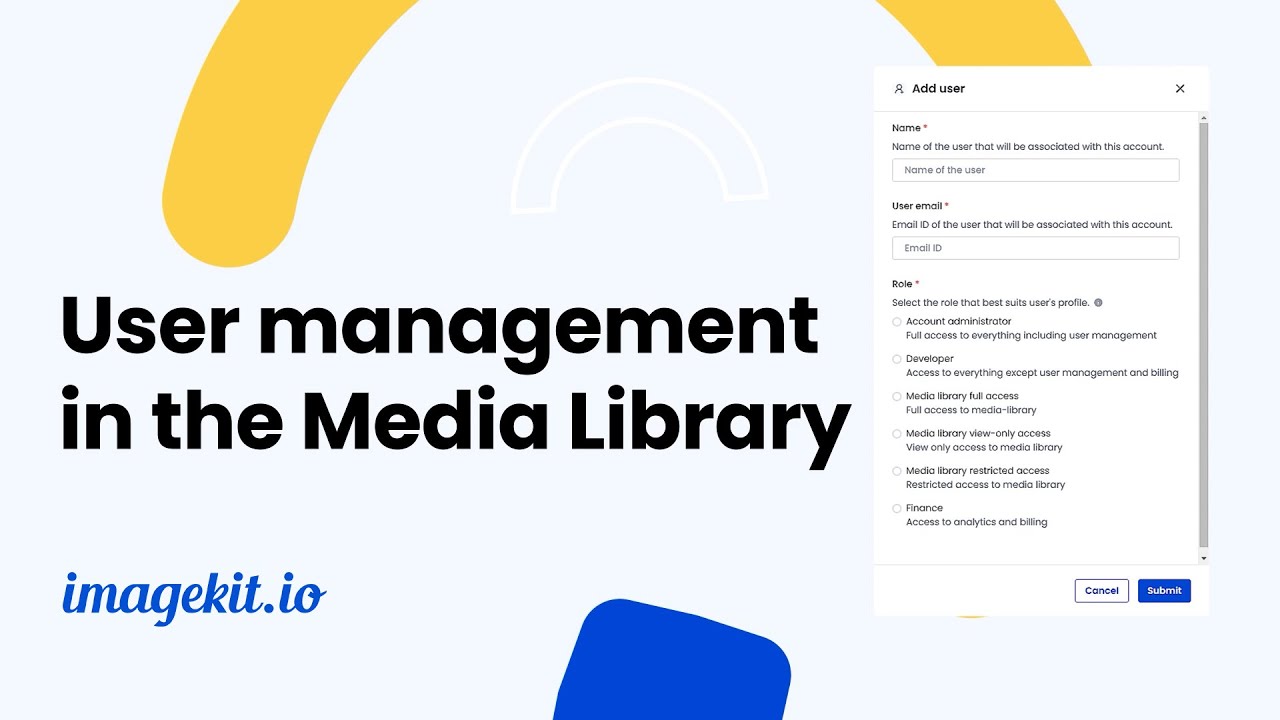
ImageKit comes with six predefined roles you can assign:
-
Account administrator: Full access, including billing and user management.
-
Developer: Full access, except billing and user management.
-
Media library full access: Can view, upload, and manage assets.
-
Media library view-only access: Read-only access.
-
Finance: Analytics and billing access.
-
Media library restricted access: Limited access to files and folders explicitly shared with them. Can also create new media collections. This is the most common role assigned for DAM users, and depending on the need, the permissions can be set up to view, manage, or contribute.
Recommended workflow for sharing with internal DAM teams
-
Set up user groups to manage access: Create groups such as “Marketing Team” or “Creative Team.” Assign roles at the group level instead of managing permissions for each individual. Everyday DAM users can be given Media library restricted access so they can access only the files that are shared with them. Managers or heads can be given either Media library full access or Media library restricted access with “can manage” rights on designated assets.
-
Organize your assets to support user groups: Create top-level folders for each team in the root of your Media Library. Avoid deeply nested folders, as permissions cascade down. If someone has a particular permission for a folder, they automatically have the same or higher access to all its subfolders.
-
Use media collections for cross-folder projects: For projects that pull from multiple folders, create a media collection and share it with the relevant stakeholders. This lets you bring scattered files together without changing where they are stored.
To share a file, folder, or media collection, right-click on it and select Share. From the pop-up, choose the restricted user or user group and assign permissions as required. If the asset you’re sharing is part of any media collection, you’ll be able to see that as well.
For complete information on user permissions, including the operations that can be performed according to the permission levels, please read here.
Sharing with external creative partners
For agencies, freelancers, or contractors who don’t have DAM accounts, the safest way is to use public links.
Here’s how to share with them:
-
In your Media Library, right-click the asset, folder, or media collection you want to share.
-
Select Public links from the menu.
-
(Optional) Set a validity timeframe by choosing start and end dates for access.
-
Optionally, add a password for extra security.
-
If you select “Expose unpublished files”, any draft files in the shared folder or collection will also be accessible (only if the Draft assets feature is enabled).
